
Product Bundle – Part of Our CPQ Apps Suite on Salesforce
Streamline your quoting process with an intuitive interface to configure pricing, add products in bulk, and apply discounts effortlessly.
Revolutionize your Salesforce experience with streamlined bundling, intelligent pricing, and global flexibility. Customize the interface to match your team’s workflow and deliver a seamless quoting process.

Achieve complete alignment within your Salesforce environment with 100% native integration—fully compatible with both Classic and Lightning. Leverage standard automation tools to boost productivity and streamline your operations.
GoCloudz is a life saver. We have complicated pricing with Bundles, Tiers and Schedules. This tool has allowed us to manage all the bundles with tiered pricing and allows scheduling on the top of it all. The support team is phenomenal, they have been so helpful and responsive throughout the testing and integration process.

Systems Manager, Wolters Kluwer
Creating the bundles themselves are also very simplistic and easy to tie together when it comes to generating a PDF for the client. GoCloudz is extremely helpful when it comes to any questions that you may have. There support don’t stop until the issue is resolved & they respond quickly. Highly recommend !

Business Analyst, Adeptia
It is a huge time saver. We sell many different bundles and our sales reps used to hate the data entry portion of the keying in the products one by one with the Salesforce item search and enter method. Now with GoCloudz it’s a snap and the salespeople love it and sell more! Support is highly responsive an knowledgeable.

President, Aviva Labs
Please verify the following criteria to ensure the bundle meets all requirements:
Please deactivate the following workflow rules to resolve the issue:
We recommend keeping the Product Bundle app installed in your org even after subscription expiry, so your configurations remain intact if you decide to renew later.
Not all companies prefer Salesforce’s standard method of applying discounts to the Subtotal field. Many want to see the Sales Price updated directly based on the discount percentage.
Are you one of them? No worries — we’ve got you covered.
For more details, please see Advanced Customization>> Discount changes Sale Price section.
In some cases, bundles are pre-approved by Product Managers with fixed pricing, and sales reps should not be allowed to modify these prices when adding them to an Opportunity.
If this applies to your process, you can enforce pricing restrictions to ensure bundles are added as-is.
Need flexibility? You can also define exception criteria — for example, allowing only Sales Managers (not Reps) to adjust bundle pricing.
For configuration details, refer to Advanced Customization >> Can edit Bundle section.
By default, bundle items are displayed in alphabetical order.
To sort them based on the timestamp they were added to the Opportunity Product, simply click the custom “Sort” button. This one-click action refreshes the page and displays the items in the correct order.
Please note:
If you’re using our PDF Generator app, you can control item sorting within PDF outputs using the Sort Column feature.
Salesforce supports only one currency per record. Therefore, if you’re selling in multiple currencies, you’ll need to create a separate bundle for each currency.
Not to worry — we’ve made this process simple and efficient.
Ask your admin to refer to the Clone section for step-by-step instructions on creating currency-specific bundles.
Depending on your use case, you may want all bundle items to be automatically expanded and preselected when a Sales Rep adds a bundle. This saves valuable time and streamlines the quoting process, allowing your team to focus on what really matters.
For setup details, please refer to the Advanced Customization
Yes, the app fully supports both multi-currency and custom price books—just like standard Salesforce Opportunities.
Each bundle is associated with a single price book and currency.
To create the same bundle for a different currency or price book, simply use the “Clone Bundle” button for a quick setup.
Yes! Product Bundle is a 100% native Force.com app, which means you can use tools like Data Loader to mass create:
To migrate data from another system, simply export the data in CSV format. Then, ask your Salesforce admin to map the necessary fields—such as Product, Price Book, and PricebookEntry – using their corresponding Salesforce IDs.
Need help? We’re happy to assist in preparing these files. Just let us know!
Yes – Product Bundle is a 100% native Force.com app, which means it fully supports Salesforce’s standard customization capabilities.
You can extend and tailor the app using:
The app also leverages FieldSets, making it easy to display custom fields on the UI without modifying the code.
There are a couple of ways to keep your bundle pricing up to date:
Manual Refresh:
Click the “Refresh” button on a bundle to update the pricing and cost of all line items. To refresh multiple bundles, go to the Product Bundle tab and use the bulk refresh option.
Scheduled Automation:
Set up an hourly or nightly batch job to automatically update bundle pricing whenever product pricing is updated in the Price Book. Let us know if you’d like help setting this up.
Note: The ideal solution would be a trigger on PricebookEntry, but Salesforce currently doesn’t support this. You can support this feature request by voting for the idea here: https://success.salesforce.com/ideaView?id=08730000000XnicAAC
Standard Salesforce PDFs often fall short when it comes to creating professional, client-ready documents. For a more powerful solution, we recommend using our PDF Generator app.
PDF Generator offers built-in integration with Product Bundle and DocuSign (for e-signature), making it easy to:
Explore all features and start your free trial today: https://appexchange.salesforce.com/listingDetail?listingId=a0N3000000B4AsxEAF
Easily create bundles directly from an existing Opportunity or Quote in just a few clicks.
Simply:
For step-by-step instructions, please see this article: https://gocpq.com/documentations/bundle-on-the-fly/
To display just the bundle—without showing individual bundle items—follow these steps:
✅ Tip: Add the “Bundle Items” related list to your Opportunity and Quote page layouts. This helps users quickly view the items included in each bundle without cluttering the main product list.
For step by step instructions, check this article: https://gocpq.com/documentations/generate-product/
Currently, bundles can only be added to standard Opportunity, Quote, Order, and Work Order objects.
At this time, adding bundles to custom objects is not on the roadmap.
To view all bundles—including Draft, Approved, and In Review statuses—use the “Bundles with Bundle Line Items” report type.
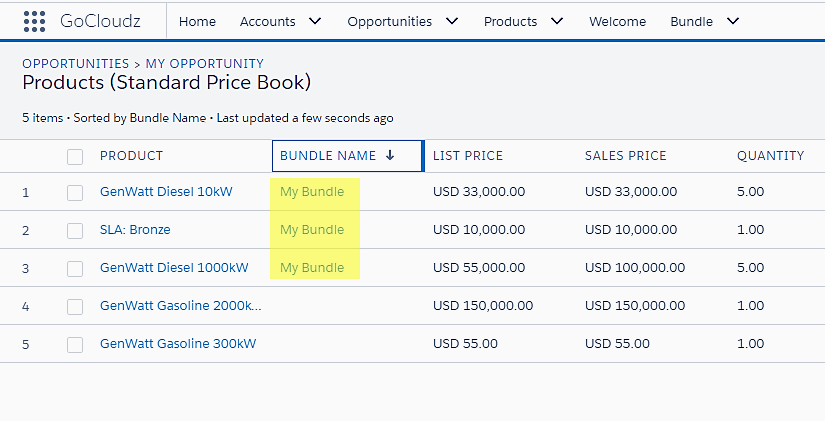
To identify popular bundles (those frequently added to Opportunities or Quotes), create an Opportunity Line Item or Quote Line Item report and group by the Bundle Name field on the line item.
If you’re reporting on Bundled Products, group by the “Generated from Bundle” field on the Product object.